How to Add a Popup to Your Squarespace Website (No Code)
April 22, 2026
13
Min Read Time
Adding a popup to your Squarespace website takes under 10 minutes and requires zero coding knowledge. Using a free no-code popup builder, you can place a fully custom Squarespace popup, email capture, exit intent, discount offer, or sticky bar, on any page of your site by pasting a single line of JavaScript into your Squarespace settings. No plugins, no developer, no paid plan upgrade required. Squarespace's built-in promotional popup tool is limited to one active popup with no exit intent or page targeting, a dedicated popup maker like SuperPopups gives you everything Squarespace's native tool can't, completely free.
Most Squarespace site owners build a clean, professional website and then leave it doing nothing to capture the visitors they're already paying to attract. Whether you run a Squarespace online store, a blog, or a service website, the right Squarespace popup maker is the single most direct way to turn passive traffic into email subscribers and paying customers. A visitor who lands on your homepage, browses your products, and leaves without converting is a visitor you spent time and money to get, and lost for free. A well-placed popup for Squarespace website is the single most direct way to turn that passive traffic into email subscribers, leads, and first-time buyers. This guide shows you exactly how to add one using SuperPopups, step by step.
Why Should You Add a Popup to Your Squarespace Website?
Squarespace is one of the best website builders for design, but when it comes to conversion tools, it keeps things deliberately simple. The built-in Squarespace promotional popup gives you one option: a single popup that fires on a time delay, with basic layout choices and no targeting capabilities beyond showing it once per session. That's it.
For a personal portfolio or a basic service page, that might be enough. For anyone running an online store, a blog, a coaching business, or any site that depends on converting visitors into something, it isn't.
Here's what the data says about popups when done properly:
Popups convert 4.82% of visitors on average, with the top 10% of campaigns reaching 9.28% and above
Exit intent popups recover up to 17% of visitors who are about to close the tab or navigate away
First-time visitor email capture popups with a discount incentive can grow your list 3–5× faster than a static embedded form
Scroll-triggered popups that fire after 50% page depth convert at 2–3× the rate of time-delay popups because they only appear after the visitor has already shown genuine interest
The gap between what Squarespace's native tool offers and what a proper Squarespace popup builder can do is significant, and that gap directly affects how much of your existing traffic you're converting every single day.
What Is SuperPopups and Why Is It the Best No-Code Popup Builder for Squarespace?
SuperPopups is a free no-code Squarespace popup maker that works on any website, including all Squarespace 7.0 and 7.1 sites,, by injecting a single lightweight JavaScript snippet into your site's Code Injection footer field. It is the best popup for Squarespace website owners who need more than Squarespace's single built-in promotional popup: unlimited popups, full trigger control, page-level targeting, and exit intent support, all completely free. Once installed, you control everything from SuperPopups' visual dashboard: popup design, trigger type, targeting rules, and email integrations. You never touch Squarespace's backend again.
Here's what you get on the free plan, permanently, with no credit card:
All popup types included: Modal popup, exit intent popup, scroll-triggered popup, time delay popup, sticky bar, slide-in, full screen overlay, newsletter popup
All triggers included: Exit intent (desktop cursor + mobile scroll-up detection), scroll depth, time delay, and click-triggered
Page-level targeting: Show different popups on your homepage, product pages, blog posts, or any specific URL
Visitor targeting: New vs. returning visitors, device type (desktop vs. mobile separately)
Email integrations: Mailchimp, HubSpot, Klaviyo, and others, connect your popup directly to your existing email list
A/B testing and analytics: Views, clicks, and conversion rate per popup, all in your dashboard
Zero page speed impact: The embed script is under 50KB and loads asynchronously, it will not affect your Squarespace Core Web Vitals score
Full popup template library: Dozens of ready-made templates you can customize without designing from scratch
If you've been using Squarespace's one built-in popup and wondering why your email list isn't growing the way it should, this is why, and SuperPopups is how to fix it.
How to Add a Popup to Squarespace Using SuperPopups (Step-by-Step)
This is the complete process from signup to your popup going live. The whole thing takes under 10 minutes the first time.
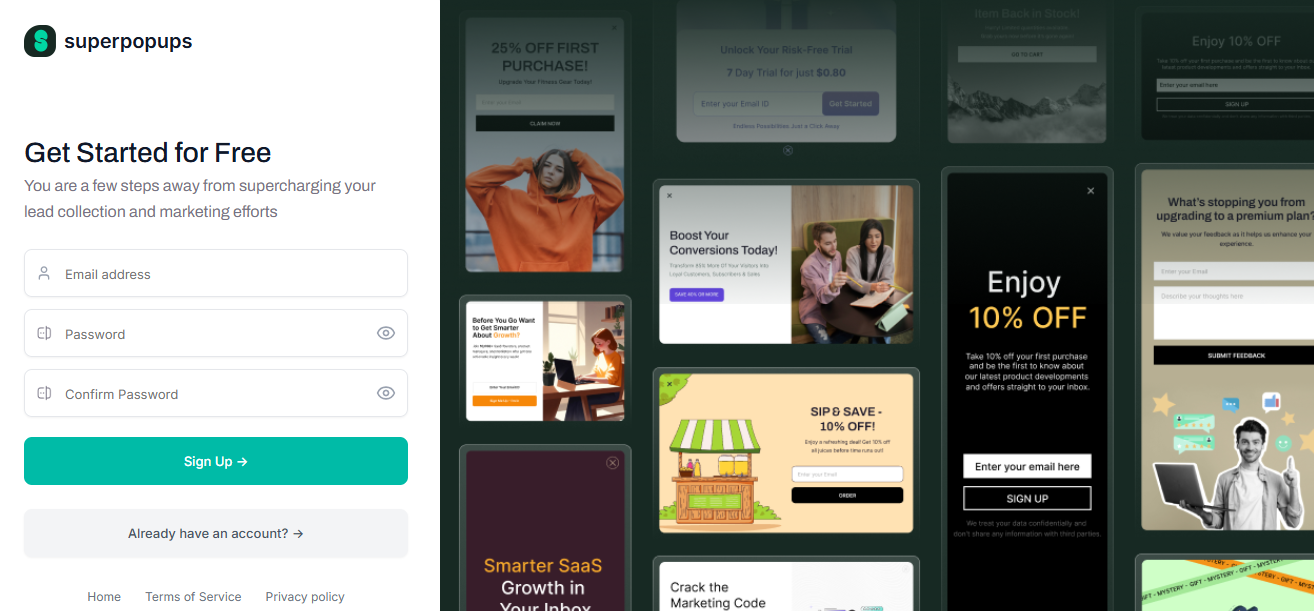
Step 1: Sign up free at SuperPopups
Go to superpopups.com and create your free account. No credit card is required, and the free plan has no time limit; it's not a trial.
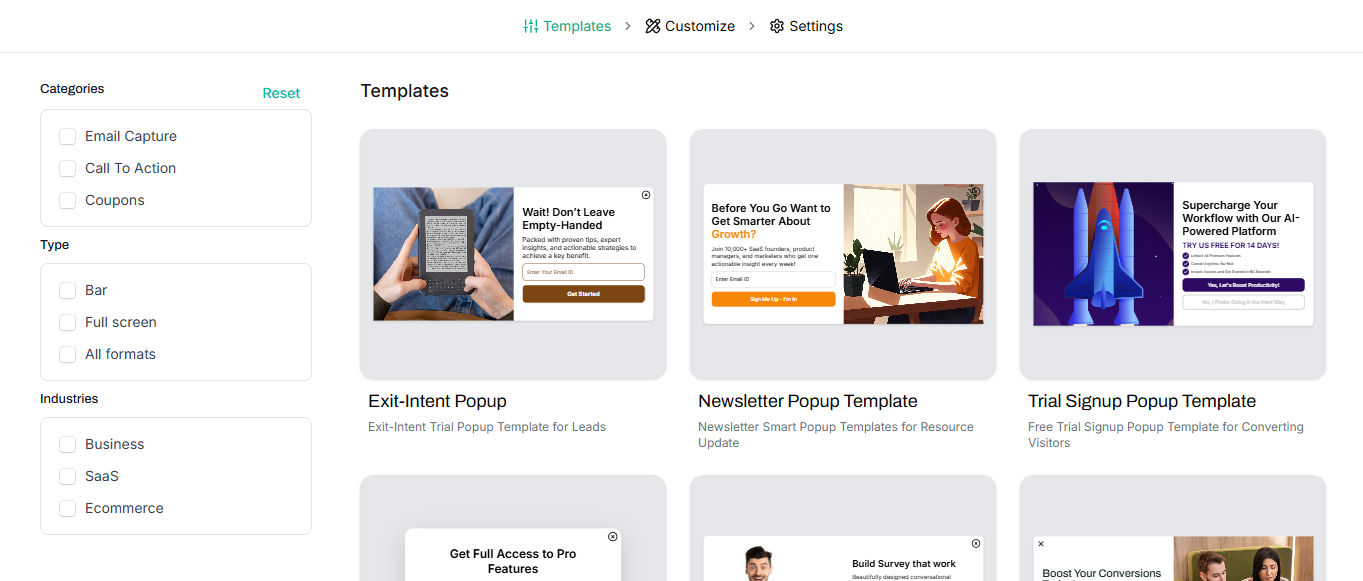
Step 2: Choose a popup template from the library
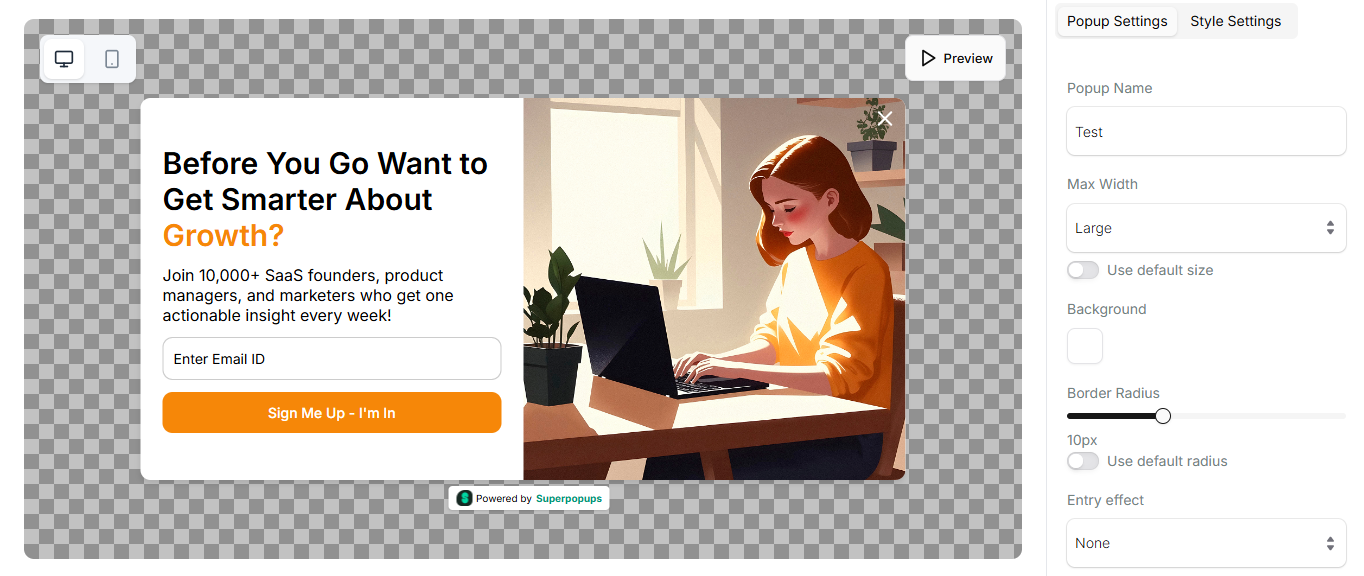
Inside your SuperPopups dashboard, go to Templates and browse the popup template library. Filter by goal, email capture, discount offer, exit intent, announcement, and choose the one that matches what you want to show on your Squarespace site. Every template is fully editable.
Step 3: Customize your popup in the no-code editor
Click into the editor and customize everything: your headline, body copy, CTA button text, colors, font, and layout. Then set your trigger type, exit intent fires when a visitor is about to leave; scroll depth fires after they've read a set percentage of your page; time delay fires after a defined number of seconds. Set your URL targeting rules if you want the popup to only appear on specific pages.
Step 4: Get your embed code
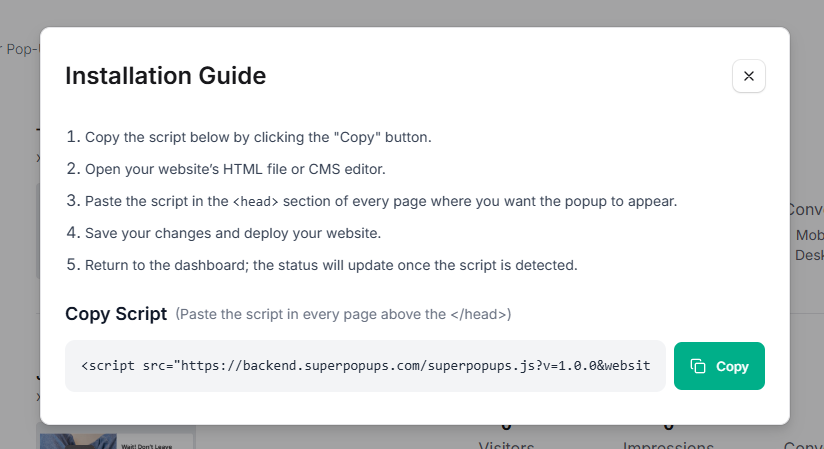
Once your popup is ready, click "Get Embed Code" in your SuperPopups dashboard. You'll see a short JavaScript snippet, copy it to your clipboard.
Step 5: Paste the code into Squarespace Code Injection
This is the only step that involves your Squarespace backend, and it takes about 60 seconds:
Log in to your Squarespace account
Go to Settings in the left menu
Click Developer Tools (Squarespace 7.1) or Website → Website Tools (Squarespace 7.0) (Not sure which version you have? Squarespace 7.1 was released in 2020, if you built your site after 2020, you are almost certainly on 7.1)
Click Code Injection
Paste your SuperPopups script into the Footer field
Click Save
Your popup is now live across your entire Squarespace website.
Where Exactly Do You Paste the SuperPopups Code in Squarespace?
The path is slightly different depending on which version of Squarespace you're on:
Paste the script in the Footer field, not the Header. Footer placement ensures the script loads after your page content, which is better for page performance. You only need to paste the script once, it applies site-wide automatically. If you want a popup on only one specific page, you handle that inside SuperPopups' dashboard using page-level targeting rules. You do not need separate scripts per page.
What Types of Popups Can You Add to Squarespace With SuperPopups?
Once your SuperPopups script is installed on Squarespace, you can run any of the following popup types, all from the same dashboard, all included on the free plan:
Exit intent popup, fires when a desktop visitor moves their cursor toward the browser close button or address bar, or when a mobile visitor scrolls up quickly. Best for recovering abandoning visitors with a last-chance offer. Squarespace exit intent popup support is not available through the native tool, SuperPopups is how you get it
Scroll-triggered popup, fires after a visitor scrolls to a set depth (e.g. 50% of the page). Ideal for Squarespace email popup campaigns on blog posts and product pages where visitors who scroll halfway are highly engaged
Time delay popup, fires after a visitor has been on your page for a set number of seconds. Good for welcome offers and announcements on high-traffic landing pages
Sticky bar, a persistent banner at the top or bottom of every page. Perfect for free shipping announcements, limited-time sales, or email capture on Squarespace store pages
Slide-in popup, a non-intrusive corner popup that slides in from the bottom right. Works well on blog posts where you want to capture emails without interrupting reading
Discount popup, a modal with a coupon code, triggered by exit intent or time delay. One of the highest-converting popup types for Squarespace eCommerce stores, averaging 7.45% CVR
Newsletter popup, specifically designed for email list building, with a single email field and a low-friction CTA. The most common use case for no code Squarespace popup installations
Squarespace Native Popup vs SuperPopups: Which Is Better?
Here's an honest, side-by-side comparison of what Squarespace's built-in promotional popup offers versus what you get with SuperPopups installed via Squarespace popup without plugin:
Feature
Squarespace Native Popup
SuperPopups (Free Plan)
Exit intent trigger
❌ Not available
✅ Included free
Scroll depth trigger
❌ Not available
✅ Included free
Time delay trigger
✅ Basic only
✅ Fully customizable
Multiple active popups
❌ Only 1 at a time
✅ Unlimited
Page-level targeting
❌ Site-wide only
✅ Per page / URL
A/B testing
❌ Not available
✅ Included
Email integrations
✅ Squarespace Forms only
✅ Mailchimp, Klaviyo, HubSpot
Popup template library
❌ Very limited
✅ Full library
Visitor targeting (new vs returning)
❌ Not available
✅ Included
Device targeting (mobile vs desktop)
❌ Not available
✅ Included
Mobile responsive
✅ Yes
✅ Yes
Analytics & CVR tracking
❌ Not available
✅ Included
Cost
Requires Business plan
✅ Free forever
The native Squarespace promotional popup is fine if you want one simple announcement and nothing else. If you want to grow your email list, recover abandoning visitors, show different offers on different pages, or A/B test what actually works, you need a dedicated free popup builder for Squarespace like SuperPopups.
1) Can I add a popup to Squarespace for free using SuperPopups?
Yes. SuperPopups has a permanently free plan with no credit card required and no time limit. You get access to all popup types, all trigger types (including exit intent and scroll depth), page-level targeting, email integrations, A/B testing, and your analytics dashboard, all at $0. You simply sign up, build your no code Squarespace popup in the visual editor, copy the embed code, and paste it into Squarespace's Code Injection footer field. Your popup is live in under 10 minutes.
2) Will the SuperPopups script slow down my Squarespace website?
No. The SuperPopups embed script is under 50KB and loads asynchronously, meaning it loads in parallel with your Squarespace page content, not before it. It will not block your page from rendering and will not impact your Squarespace Core Web Vitals score or Google page speed rating. Thousands of Squarespace sites run SuperPopups without any measurable performance impact.
3) Does SuperPopups work on both Squarespace 7.0 and 7.1?
Yes. SuperPopups works on both Squarespace 7.0 and Squarespace 7.1. The installation path for Code Injection is slightly different between the two versions, in 7.1, it's under Settings → Developer Tools → Code Injection; in 7.0, it's under Website → Website Tools → Code Injection. In both cases, you paste the SuperPopups script into the Footer field and save. The popup then runs on all pages automatically.
4) Can I show a popup on only one page of my Squarespace site?
Yes. SuperPopups includes page-level URL targeting, which lets you control exactly which pages each popup appears on. You can show a discount popup only on your product pages, a newsletter popup only on blog posts, or a free shipping bar only on your Squarespace store, all managed from your SuperPopups dashboard without touching Squarespace at all. You install the script once site-wide and then configure targeting rules per popup inside SuperPopups.
5) Does Squarespace support exit intent popups natively?
No. Squarespace's built-in promotional popup does not support exit intent triggering. It only supports a basic time delay. To add a Squarespace exit intent popup, one that fires when a visitor moves their cursor toward the close button on desktop, or scrolls up quickly on mobile, you need a third-party tool like SuperPopups installed via Code Injection. This is one of the most significant functional gaps in Squarespace's native popup tool and one of the most common reasons Squarespace site owners switch to a dedicated popup maker for their conversion campaigns.
Last updated on:
May 13, 2026
SuperPopups Team
The SuperPopups Team is a collective of writers and growth marketers who blend storytelling with conversion strategy. We break down complex CRO, popup optimization, and on-site engagement tactics into clear, practical content that teams can actually use. Our mission is simple: create helpful, data-driven resources that empower businesses to boost conversions, improve user experience, and grow smarter.
More Articles
May 22, 2026
13
Min Read Time
How to Set Up a Popup Funnel That Nurtures Visitors from First Visit to Conversion
Learn how to set up a popup funnel that nurtures visitors from first visit to conversion with the right popup strategy, timing, and offers.
How to Use Popups with Google Ads Landing Pages Without Hurting Quality Score
Popups can hurt your Google Ads Quality Score, but only the wrong ones. Learn which popup formats are safe for PPC landing pages and how to set them up.
What Is Popup Fatigue and How to Avoid It on Your Website
Popup fatigue kills conversions silently. Learn what it is, what causes it, and 6 proven fixes to avoid it on your website without removing your popups.
Sleeknote Alternatives: Best Popup Builders to Consider in 2026
Sleeknote too expensive? Discover the 4 best popup builder alternatives in 2026, one is free forever. Compare features, pricing & find the right fit for you.
Popups for Online Coaches and Course Creators: Grow Your List and Sell More Courses
Coaches lose leads daily from visitors who don't subscribe or enroll. Learn how popups for online coaches grow your list and sell more courses, FREE with SuperPopups.
Popup for Restaurant Websites: How to Drive More Reservations and Signups
Do restaurant websites need popups? Yes, they convert menu browsers into table bookings and email signups. See which popup types work best, free with SuperPopups.
Popup for Real Estate Websites: How Agents Capture More Leads Online
Real estate agents lose leads daily from property browsers who don't enquire. Learn how a popup for real estate websites captures more leads free with SuperPopups.
Cart Abandonment vs Exit Intent: What's the Difference and Which Should You Use?
Cart abandonment popups convert at up to 17% on cart pages. Exit intent works on every page. Learn the real difference and when to use each, plus how to set both up free.
How to Use Popups to Grow a Shopify Store: Complete 2026 Strategy Guide
Want to grow your Shopify store with popups? This 2026 guide covers every popup type, trigger, placement & setup, email capture, exit intent, cart abandonment & more.
How to Add a Popup to Wix Without a Plugin (No Code)
Learn how to add a popup to Wix without a plugin using no-code methods. Follow our simple step-by-step guide to create stunning popups on your Wix website fast.
How to Add a Popup to Your Squarespace Website (No Code)
Learn how to add a popup to your Squarespace website without any code or plugin. Use SuperPopups to launch email capture, exit intent & discount popups in minutes.
How to Use Popups on Blog Posts Without Hurting Readership
Learn how to add popups to blog posts without hurting readership. Timing, triggers & placement tips to grow your email list while keeping readers engaged.
Free Popup Builder for Small Businesses: Best No-Cost Tool in 2026
The best free popup builder for small businesses in 2026, No credit card, no code, no expiry. Capture emails, recover abandoning visitors, and grow sales from day one.
Popup Templates: How to Choose the Right Design for Your Goal
Discover how to choose the right popup templates for your goal. Explore popup design tips to boost conversions, grow leads, and engage visitors effectively.
How to Create a Popup for Your WordPress Website (Free, No Plugin Required)
Create a popup for your WordPress website in under 5 minutes, free, no plugin, no coding. Step-by-step setup guide using a lightweight script that won't slow your site.
How to Use Popups to Promote Flash Sales and Limited-Time Offers
Learn how to use flash sale popups to drive urgency, boost conversions, and promote limited-time offers, with countdown timers, triggers, and real examples.
Newsletter Popup: How to Get More Subscribers Without Being Annoying
Learn how to use a newsletter popup to grow your subscriber list fast, without annoying visitors. Tips to boost signups while keeping your user experience smooth.
Do Popups Affect SEO? How to Use Them Without Getting Penalized
Popups don't hurt SEO, unless they break one Google rule. Learn which popups trigger the intrusive interstitial penalty and how to use them safely in 2026.
Add a popup to your Shopify store without installing an app. One lightweight script, no code, no App Store fees, live in under 10 minutes. Here's exactly how to do it.
Popup vs Banner: What's the Difference and Which Converts Better?
Popup vs banner, what's the difference, and which converts better? Compare both formats and find out which drives more leads, clicks, and sales for your website.
Learn how to write popup copy that converts, headline formulas, CTA button text, and micro-copy tips backed by data. First-person CTAs alone can lift clicks by 90%.
Popup for Ecommerce: How to Use Popups to Increase Sales
70% of shoppers abandon their cart. Ecommerce popups fix that. Learn which popup types convert best, what to offer, and how to set one up in under 10 minutes.
Learn how to reduce bounce rate with exit intent popups. Discover proven strategies to re-engage leaving visitors and boost conversions on your website.
How to Use Popups for Lead Generation (Complete Guide)
Learn how to use popups for lead generation with proven strategies, timing tips, and design best practices to capture more leads and grow your email list fast.
Popup Conversion Rate: What's a Good Rate & How to Improve It
Learn what a good popup conversion rate is, industry benchmarks, and proven tips to improve your popup performance and boost conversions. Start optimizing today.
Email Capture Popup: How to Grow Your Email List Faster
Learn how email capture popups grow your email list faster. Types, triggers, best practices & real examples. Start converting visitors into subscribers today.
How to Add a Popup to Your Website in 5 Minutes (No Code)
Learn how to add a popup to your website in just 5 minutes, no coding required. Step-by-step guide to launch your first popup and capture more leads today.
No-Code Popup Builder: What It Is & Why It Matters (2026)
A no-code popup builder lets you create exit intent, email capture & discount popups without coding. Learn what it is, how it works & why it matters in 2026.
Looking for the best popup builder for Shopify? This 2026 guide covers top tools for exit intent popups, email capture, discount popups, and cart abandonment, with free plan options included.
Popup Design Best Practices: UI, UX & Psychology for Higher Conversions 2026
Popup design best practices 2026: UI, UX, and psychology tips to create high‑converting popups that reduce friction, boost engagement, and respect user experience.
Popup Builder vs WordPress Popup Plugin: Which is Better in 2026?
WordPress popup plugins slow your site 30-50%. Script-based builders like SuperPopups are faster, flexible, and work on any platform. Free plan available.
Top 5 OptinMonster Alternatives to Boost Conversions in 2026
Looking for the best OptinMonster alternatives? Find top 5 powerful popup and lead generation tools for 2026 with features, pricing, and tips to boost conversions
What Is a Lightbox Popup and Why SaaS Businesses Should Use It?
Learn what a lightbox popup is and why it is most importance for SaaS businesses. Know about its benefits, examples, and tools to increase sign-ups and engagement.
Find the top 10 best popup builders of 2025 to boost conversions, capture leads, and reduce cart abandonment. Compare features and pricing to choose the right popup software for your website.
What Are the Types of Website Popups? The Complete Guide for SaaS Businesses in 2025
Learn the different types of popups, designed to boost conversions without ruining user experience. And how SuperPopups help your SaaS business growth.
SuperPopups vs. OptiMonk: Complete Comparison Guide 2026
Compare SuperPopups vs. OptiMonk to find the best popup builder for your business. Find key differences in pricing, features, ease of use, and conversion performanceupdated for 2025.
Find the Webflow powerful pop-up builder tool to boost conversions, capture leads, and enhance user engagement without coding. Easily create, customize, and manage popups in Webflow.



.avif)








.jpg)



.jpg)


.jpg)



.jpg)

.jpg)
.jpg)


.jpg)